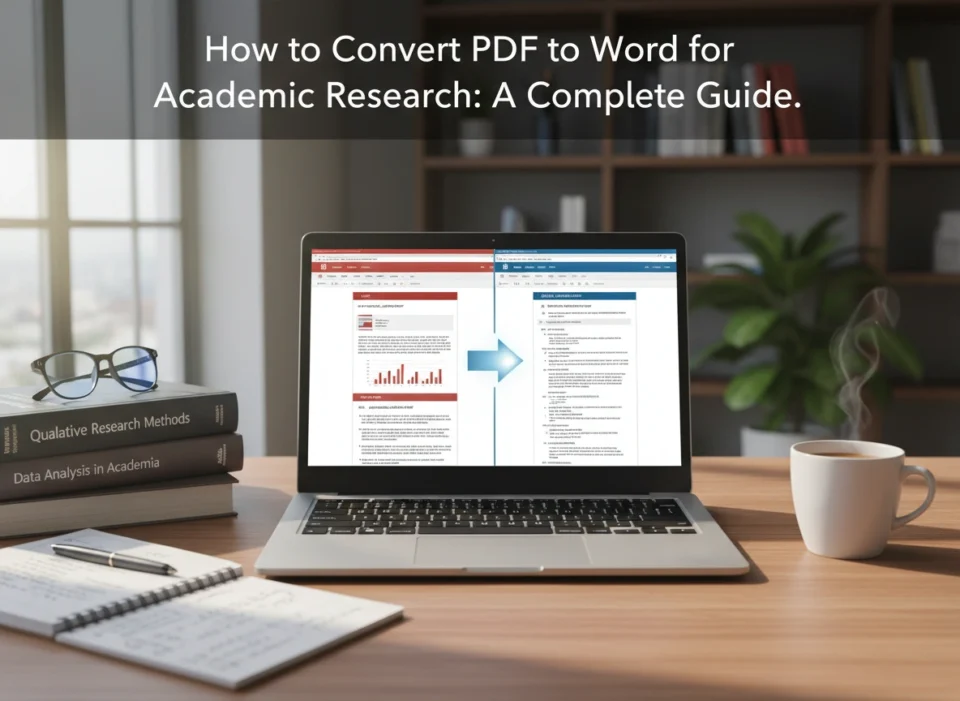
Academic research relies heavily on the efficient management of information. Researchers frequently encounter a stubborn barrier in this workflow: the Portable Document Format (PDF). While PDFs are the global standard for sharing finalized documents because they preserve formatting across devices, they are notoriously difficult to edit. For a researcher compiling literature reviews, extracting data, or quoting sources, a static PDF can slow down the entire writing process.
Converting these documents into editable Microsoft Word formats is often a necessary step in the academic workflow. It allows scholars to annotate directly, copy-paste citations without formatting errors, and seamlessly integrate findings into their own manuscripts. This guide explores the most effective methods for converting PDFs to Word, ensuring that your research process remains as fluid and accurate as possible.
Why PDF to Word Conversion Matters in Academia
The transition from reading to writing is critical in research. Most academic journals, repositories, and digital libraries distribute content as PDFs. While this ensures the document looks the same on every screen, it locks the content away from easy manipulation.
Converting these files to Word offers several distinct advantages for the academic community:
- Streamlined Data Extraction: Copying text from a PDF often results in broken line breaks, strange symbols, and lost formatting. A clean conversion preserves the structure, making it easier to pull quotes and data.
- Enhanced Annotation: While PDF readers allow for comments, Word documents allow for direct editing, rewriting, and deeper engagement with the text during the drafting phase.
- Reference Management: Researchers often need to import bibliographies. Converting a reference list to Word can make it easier to format into citation managers like EndNote or Zotero.
- Accessibility: Converting image-based PDFs (scanned documents) into text-searchable Word documents using OCR (Optical Character Recognition) makes older archives accessible and searchable.
Method 1: Using Dedicated Desktop Software
For researchers handling sensitive data or large manuscripts, desktop software is often the most reliable choice. These tools do not require an internet connection and offer robust features for handling complex layouts.
Adobe Acrobat Pro DC
Adobe created the PDF standard, so their professional software remains the gold standard for conversion.
- Open the PDF in Adobe Acrobat Pro.
- Locate the Tools Pane: Click on the “Export PDF” tool in the right pane.
- Select Format: Choose “Microsoft Word” as your export format. You will see options for “Word Document” (.docx) or “Word 97-2003 Document” (.doc). The .docx format is recommended for modern compatibility.
- Adjust Settings: Click the gear icon to adjust settings. Ensure “Retain Flowing Text” is selected if you plan to heavily edit the document. If layout preservation is critical, select “Retain Page Layout.”
- Export: Click “Export.” Name your file and save it to your desired location.
Microsoft Word (Direct Import)
Many researchers are unaware that modern versions of Microsoft Word can open PDFs directly. This method works best for text-heavy documents with simple formatting.
- Launch Microsoft Word.
- Open File: Go to File > Open and browse for the PDF file on your computer.
- Confirm Conversion: Word will display a dialog box stating that it will convert the PDF to an editable Word document. It warns that the resulting document might not look exactly like the original PDF, especially if the original file contains many graphics.
- Click OK: Word will process the file. This may take a few moments depending on the file size.
- Review and Save: Once open, review the formatting. You may need to adjust margins or font styles. Save the file as a .docx.
Method 2: Utilizing Online Conversion Tools
Online tools are convenient for quick, one-off conversions when you do not have access to premium software. However, academic researchers must exercise caution regarding data privacy when uploading unpublished or sensitive work to third-party servers.
Smallpdf
Smallpdf is a popular, user-friendly tool that handles standard conversions well.
- Navigate to the Website: Go to the Smallpdf “PDF to Word” tool.
- Upload File: Drag and drop your PDF into the toolbox or click “Choose Files.”
- Choose Mode: You will usually see two options. The “Convert to Word” option is free and works for standard PDFs. The “Convert to Word with OCR” option is usually a paid feature required for scanned documents (images of text).
- Download: Once the conversion is complete, download your Word file.
ILovePDF
Similar to Smallpdf, this tool offers a suite of PDF management features.
- Select Tool: Choose “PDF to Word” from the homepage.
- Upload: Select your file from your computer, Google Drive, or Dropbox.
- Convert: Click the large “Convert to WORD” button.
- Retrieve: Download the converted file immediately.
Note on Privacy: Always check the privacy policy of online converters. For confidential research data or pre-publication drafts, stick to offline desktop methods.
Method 3: Handling Scanned Documents (OCR)
In academic research, you will inevitably encounter older journal articles or archival materials that were scanned as images. A standard conversion will simply paste an image of the text into a Word document, which is not editable. You need Optical Character Recognition (OCR).
Google Drive (Built-in OCR)
This is a free and surprisingly effective method for students and researchers.
- Upload: Upload your scanned PDF to Google Drive.
- Open with Docs: Right-click the uploaded file, select “Open with,” and choose “Google Docs.”
- Process: Google will convert the image into text.
- Result: The resulting document will usually display the original image on the first few pages, followed by the raw extracted text.
- Export: Go to File > Download > Microsoft Word (.docx). Note that formatting is often lost in this process, but the raw text is preserved for analysis.
ABBYY FineReader PDF
For heavy-duty archival research, ABBYY FineReader is widely considered the industry leader in OCR technology.
- Open Document: Load the scanned PDF into the software.
- OCR Editor: The software automatically analyzes the layout, distinguishing between text, tables, and images.
- Verify: You can manually verify low-confidence characters (where the software is unsure if a letter is an ‘e’ or a ‘c’, for example).
- Save: Save the document as a Microsoft Word file. This tool excels at preserving complex table structures found in scientific papers.
Tips for Maintaining Formatting and Accuracy
Conversion is rarely perfect. Academic documents are complex, often featuring footnotes, dual columns, mathematical equations, and specific citation styles. Here is how to maintain integrity during the switch.
1. Watch the Headers and Footers
Conversion software often mistakes headers (like running titles) and footers (page numbers) for body text. This can interrupt sentences in the Word document.
- The Fix: specific conversion settings in Adobe Acrobat allow you to “Ignore headers and footers.” If using Word, use the “Find and Replace” function to remove repetitive header text that has been inserted into the body paragraphs.
2. Handle Citations Carefully
Superscript numbers for footnotes and endnotes can sometimes convert as normal text numbers (e.g., “Research suggests1” instead of “Research suggests¹”).
- The Fix: Manually review specific sections with heavy citations. If using citation software like Zotero, you may need to re-insert the citation fields in Word to make them active again.
3. Verify Tables and Figures
Data tables in PDFs are essentially drawn lines and text boxes. When converted, Word may interpret them as tabs or separate text boxes, ruining the alignment.
- The Fix: For critical data, it is often safer to take a screenshot of the table from the PDF and paste it into Word as an image, rather than risking data corruption through conversion. If the data must be editable, use a tool like ABBYY FineReader or manually reconstruct the table in Excel first.
4. Check for Ligatures and Symbols
Academic texts often use ligatures (where ‘f’ and ‘i’ are combined into one character, ‘fi’). Some converters misinterpret these as different symbols or leave blank spaces.
- The Fix: Do a quick search (Ctrl+F) for common issues immediately after conversion. Search for “fi” words like “finding” or “define” to ensure they rendered correctly.
Best Practices for Workflow Efficiency
Integrating conversion into your research workflow requires discipline to avoid clutter and version control issues.
- Keep the Original: Never delete the original PDF. Treat the converted Word doc as a “working file” or “draft.” The PDF is the source of truth.
- Naming Conventions: Rename your converted files clearly. If the original is
Smith_2020_Journal.pdf, name the editable versionSmith_2020_Journal_EDITABLE.docx. This prevents confusion later. - Batch Conversion: If you are conducting a systematic literature review and need to analyze text from 50 papers, use the “Action Wizard” in Adobe Acrobat or batch processing in ABBYY FineReader to convert folders of files at once. This saves hours of manual work.
Conclusion
The ability to fluidly move between PDF and Word formats is a subtle but powerful skill in academic research. It bridges the gap between passive reading and active analysis. While no conversion method is flawless, understanding the strengths of different tools allows you to choose the right approach for your specific needs.
For general documents, Microsoft Word’s direct import feature is accessible and sufficient. For layout-heavy manuscripts, Adobe Acrobat Pro remains superior. For archival, scanned research, leveraging OCR technology through Google Drive or ABBYY FineReader transforms static images into usable data. By mastering these conversion techniques and applying the formatting tips outlined above, you can spend less time wrestling with file formats and more time focusing on the substance of your research.
Please visit website for more info.